 Malcolm Keith 2026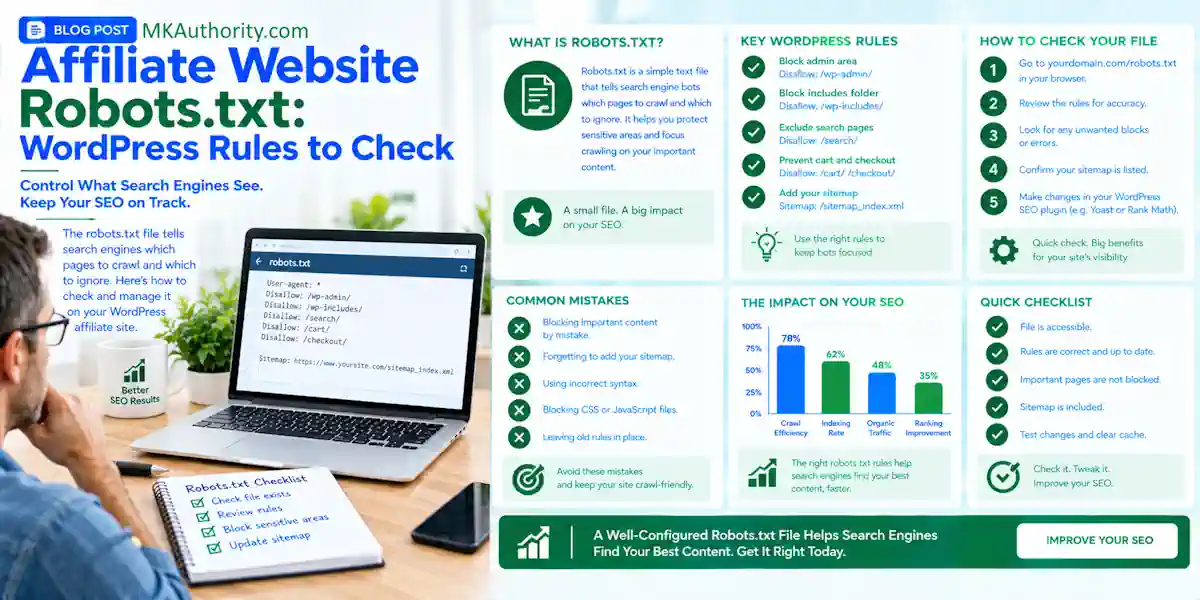

One careless rule in a robots.txt file can keep Google from crawling the affiliate reviews you worked hard to publish. The good news? Your affiliate website robots.txt setup usually needs a few careful checks, not a complicated technical overhaul.
You want search engines to reach your useful content without wasting time on unnecessary URLs. Start with what your site already has, then make changes you can explain and test.
Key Takeaways Before You Change Anything
- Robots.txt guides crawling. It doesn’t protect private content or guarantee that a page disappears from Google.
- Check your existing WordPress rules before editing. Keep reviews, comparisons, images, and essential page resources accessible.
- Use a crawlable noindex directive when a public page must stay live but shouldn’t appear in search results.
Now, let’s make those rules practical for your WordPress affiliate site.
Understand Crawling Before You Block Anything
Crawling and indexing are different jobs
Crawling means a bot visits a URL and reads its content. Indexing means a search engine processes that content for possible inclusion in search results.
Robots.txt works under the Robots Exclusion Protocol. It tells cooperating web crawlers, including training crawlers, which parts of your site they shouldn’t request.
But here’s the important part: Google can discover a blocked URL through links elsewhere. That URL may still appear in search, even though Google couldn’t read the page.
Google’s robots.txt guidance makes this distinction clear. Blocking crawling isn’t a dependable removal method.
Private content needs real access protection
Your robots.txt file is public, so listing paths to sensitive content doesn’t protect it. Anyone can read those paths.
Don’t put private customer files, passwords, or confidential download locations there and expect protection. Protect sensitive content with authentication, server permissions, or password protection instead.
A Disallow directive can stop a cooperating crawler from reading a page. It doesn’t stop a visitor from opening that page.
For an affiliate business, this matters with member downloads, subscriber resources, and staging sites. Privacy needs an actual access barrier.
Check Your Existing WordPress Robots.txt First
Open the version your visitors receive
Open the robots.txt file visitors receive by adding /robots.txt to your site’s domain in a browser. Check the exact hostname your public website uses, including whether it uses www; subdomains may have their own files.
The file belongs in the root directory, not inside a theme folder or an individual article directory. Google’s robots.txt creation instructions explain placement and supported rules.
Copy the current contents before changing anything. That gives you a simple rollback option if something goes wrong.
Don’t assume every WordPress installation has identical rules. WordPress versions, plugins, hosting settings, and previous edits can change the output.
Find out what controls the file
WordPress can generate a virtual robots.txt response when there isn’t a physical file in the root directory.
A physical root-level file takes precedence over that virtual output. So, a setting in WordPress plugins may not control the live response if your hosting account already contains a separate file.
Check your hosting File Manager or ask support which version is active. If your existing plugin or hosting dashboard offers an editor, confirm that it controls the live response.
You don’t need another plugin simply because a tutorial recommends one. First, find the setting or file your site already uses.
The Four Robots.txt Directives Beginners Need
Each directive in a robots.txt file has a straightforward job for web crawlers.
| Directive | What it means | WordPress example |
|---|---|---|
| User-agent directive | Selects the crawler group receiving the rules, such as training crawlers. | User-agent: * starts the general group. |
| Disallow directive | Identifies a path the selected crawler shouldn’t request. | Disallow: /wp-admin/ restricts admin crawling. |
| Allow directive | Permits a more specific path inside a restricted area. | Allow: /wp-admin/admin-ajax.php permits that endpoint. |
| Sitemap directive | Gives crawlers the absolute location of an XML sitemap. | Add your verified sitemap URL after Sitemap:. |
Now, watch the small details. Disallow: / blocks crawling across the entire site for the selected group. An empty Disallow: value doesn’t block a path.
Paths are case-sensitive, so /Reviews/ and /reviews/ aren’t interchangeable. A Disallow directive beginning with /review can also match longer paths with that prefix.
Google uses the most specific matching path rule. Putting an Allow line last doesn’t automatically make it override every restriction.
Comments begin with #. Keep each directive on its own line, and save manual edits as plain text to avoid formatting issues and syntax errors.
The Sitemap directive helps discovery as one part of technical SEO. It doesn’t guarantee indexing or override a Disallow rule.
A WordPress Starting Point You Can Understand
Keep admin restrictions narrow
A common WordPress configuration includes these lines:
User-agent: *
Disallow: /wp-admin/
Allow: /wp-admin/admin-ajax.php
The first line starts the general crawler group. The second is a Disallow directive that limits crawling of the admin area, but doesn’t secure it. The third keeps WordPress’s AJAX endpoint available.
Some front-end features use that endpoint, so don’t remove the exception without understanding your site’s setup.
This is a configuration to evaluate, not a universal replacement file. Before replacing your robots.txt file, assess your existing setup. Preserve rules you understand, and investigate unfamiliar ones before deleting them.
Leave content and page resources accessible
Don’t broadly block /wp-content/, /wp-includes/, or /wp-content/uploads/ simply because those folders look technical.
Your images, stylesheets, and scripts may live there. Search engines need access to resources that help them understand and render your pages.
The same caution applies to reviews, comparisons, tutorials, and useful category pages. Those are often the pages meant to attract readers and future buyers.
Your affiliate website robots.txt should support that goal. It shouldn’t hide important content because an old template labels everything outside the homepage unnecessary.
Before restricting any folder, inspect several URLs inside it. Know what you’re blocking.
Choose the Right Treatment for Affiliate URLs
Search pages, filters, and duplicate versions
Internal search URLs and filter combinations can create many low-value pages. WordPress search URLs often include ?s=, while directory-style sites may generate sorting and filtering parameters.
Don’t copy a broad parameter-blocking rule without checking your actual URLs. It might miss some combinations or block useful pages.
For most small affiliate blogs, managing crawl budget isn’t the priority. It matters more when huge URL inventories or server limitations create crawling problems.
Start with clear navigation and a stronger internal linking strategy. Useful reviews need discoverable links, not increasingly complicated restrictions.
For near-identical page versions, check actual URLs before treating them as duplicate content. Consider canonical tags, or use a closely matched redirect for permanently replaced content.
Campaign pages and thin affiliate content
An ad-only landing page may need to remain available without appearing in Google. That’s usually an indexation decision, handled with a noindex tag rather than a robots.txt block.
Google needs crawl access to read and process that instruction. Remove noindexed pages from your XML sitemap and check the live directive.
MKAuthority’s guide to noindexing thin affiliate pages covers that decision in more detail.
Still, noindex doesn’t improve weak content or fix a penalty. A useful review needs honest limitations, pricing context, alternatives, and firsthand proof when you have it.
Never imply you tested a product if you didn’t. Technical settings can’t replace useful information or clear affiliate disclosures.
Publish and Test Your Rules Without Guesswork
You can make these checks with free tools and your existing hosting access.
- Save a copy of the current live rules and record why each proposed change is needed.
- Edit the active file or editor. For a manual edit, use plain text and place the
robots.txt filein the site’s root directory through File Manager or SFTP. - Open the public robots.txt response again. Confirm that it contains your changes, rather than relying on a saved dashboard message.
- Use Google Search Console’s URL Inspection live test on an important review, comparison, and any restricted page. If your policy restricts training crawlers, verify that rule too.
If a hosting cache or CDN still serves the old response, clear the relevant cache and check again. The public response is what crawlers receive.
Search Console’s blocked-page troubleshooting guidance helps you identify and correct an unwanted restriction.
For a broader technical SEO check, Screaming Frog SEO Spider can inspect crawl access, response codes, and page-level directives.
Keep a short change record with the date and affected paths. Then monitor Page Indexing and search performance over the following weeks. Search engines don’t process every change immediately.
Stop Staging Rules From Reaching Your Live Site
A staging website often needs restrictions while you’re building it. The danger comes when those settings travel into production.
A sitewide Disallow: / rule, known as a Disallow directive, tells cooperating crawlers not to request your live site’s pages. That’s a costly mistake when you want organic traffic.
In WordPress, also check Settings > Reading. Review the checkbox labeled “Discourage search engines from indexing this site.”
For a public affiliate site intended to rank, that setting should be unchecked. Then inspect the live robots.txt file response and the pages’ indexing directives.
Turning off one setting doesn’t prove every other restriction has disappeared. A migrated physical file or page-level noindex can remain.
Use authentication to protect staging and any sensitive content. Robots.txt alone doesn’t make an unfinished site private.
After a launch, redesign, or hosting migration, repeat these checks before promoting the site. It’s much easier to catch a leftover restriction early.
AI Crawlers Are an Optional Policy Decision
Search engine bots and AI crawlers don’t all have the same purpose.
OpenAI identifies GPTBot as a crawler that may collect content for model training. OAI-SearchBot supports ChatGPT search features, and their robots.txt controls are independent.
So, blocking GPTBot doesn’t automatically block OAI-SearchBot, and blocking AI training doesn’t automatically block Googlebot. Because GPTBot and OAI-SearchBot have separate controls, set each rule for its intended purpose.
A bot-specific group can also change which rules apply. Don’t assume it automatically inherits every restriction in your general group.
For a beginner affiliate site, decide what you want before adding more rules. Decide whether to allow training crawlers such as GPTBot. Search discovery and abusive traffic are separate concerns.
Robots.txt depends on cooperation. It can signal preferences to training crawlers, but it can’t stop every unwanted request. If requests threaten server resources, hosting controls, rate limiting, or firewall rules may be needed.
You don’t need a long AI bot list to publish useful affiliate content.
Frequently Asked Questions
Does robots.txt prevent a page from appearing in Google?
No. It controls whether cooperating crawlers can request a page, but a blocked URL may still appear in search results if Google discovers it elsewhere. Use a crawlable noindex directive when a public page shouldn’t be indexed.
Where should the affiliate website robots.txt file be located in WordPress?
A physical affiliate website robots.txt file belongs in your site’s root directory, alongside the files used to serve your website. Check the public version at your domain’s /robots.txt address to confirm what crawlers receive.
Should I block /wp-content/ in robots.txt?
Usually not without checking what your site stores there. Images, stylesheets, and scripts may be needed for search engines to understand and render your pages.
What should I do if robots.txt blocks an important review?
Check the live robots.txt response and identify the rule matching the review’s URL. Make the smallest necessary change, then test the page with Google Search Console’s URL Inspection tool.
Keep Your Affiliate Site Crawlable and Useful
A sound affiliate website robots.txt setup begins with checking existing rules and making narrow, tested changes. Keep important content and page resources accessible.
Use noindex for appropriate search exclusions and real access protection for private material. Neither replaces honest, useful affiliate content.
Save your current file and check your strongest review in Search Console. Check the existing rules in your affiliate website robots.txt file, then make the smallest tested change that solves the problem. That’s a practical next step you can verify.


